Free online PDF merge: join up to three PDFs in order
Join two or three PDFs in the order you set, for free, with no account. Learn the 8 MB limit, what the free tool sends, and when to move the job to the API.
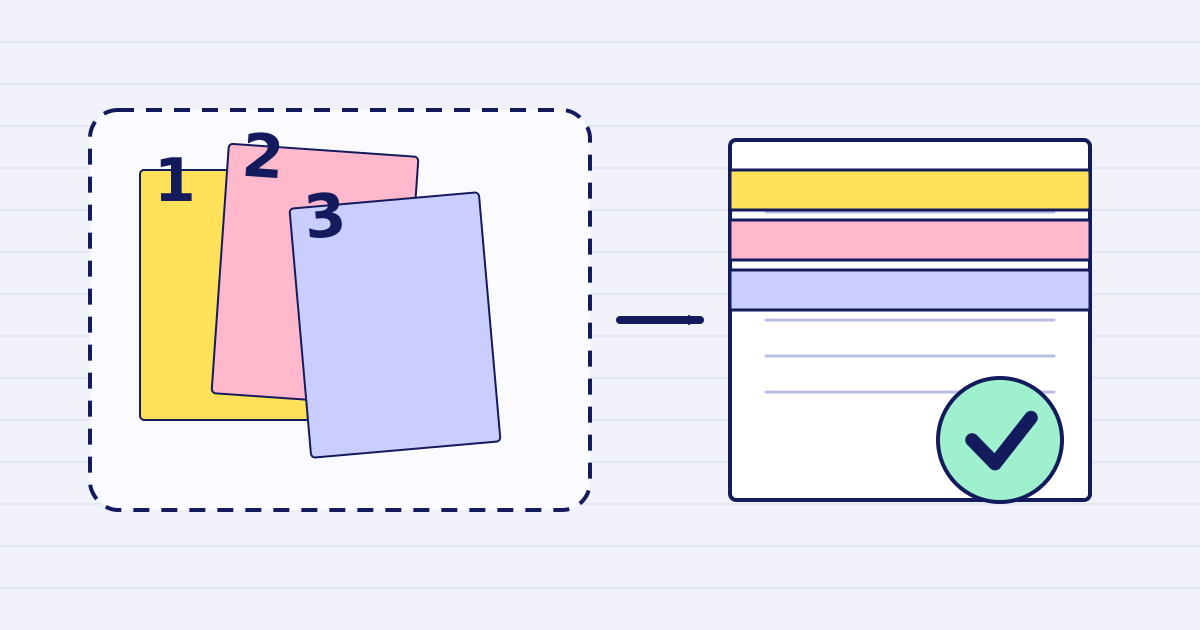
Sometimes you need one PDF from three files, once. A contract, its annex and a signature page. You do not need a workflow or an API key for that. The free PDF merge tool joins two or three PDFs into one, and you can run it without an account.
This article explains what the tool does, what it sends, what its limits are, and when a paid API call is the better choice.
What the tool does
You add two or three PDFs, check their order, and run the merge. The output has the pages of the first file, then the second, then the third. The pages keep their order inside each file.
The tool uses the same job as the paid PDF merge API. If any file cannot be read, the merge stops and you get an error. No partial file is returned.
What the tool sends
The tool is not a local editor. When you run a merge, your files are sent to the JustAPI API for processing. The request is checked with a Cloudflare Turnstile verification first. The result is deleted within the hour, or at once when you download it.
If your documents are confidential, read the privacy policy and the subprocessor list before you upload them. For a file that must not leave your own machine, use a local tool.
The limits
- Two or three PDFs per run.
- 8 MB in total for the run.
- Five runs per day from the same browser.
- Encrypted PDFs cannot be merged. Signed PDFs are refused too, because joining them could change or break their protection.
- Results are deleted within the hour, or at once when you download them.
If the total is over 8 MB, you have two options. You can merge fewer files, or you can reduce the largest file first with the free PDF compressor. That tool accepts one file of up to 5 MB per run.
A manual merge, step by step
- Put the files in the order they should appear. The tool keeps the order you see on screen.
- Open each file and note its page count. You will compare the output with this total.
- Run the merge. Wait for the result instead of starting a second run.
- Download the file and open it. Check the page count against your total and scan the first and last pages of each section.
- If the merge fails, read the error. Most failures come from an encrypted file or a file that cannot be read. Export a fresh PDF from the source program and try again.
The tool allows five runs per day from the same browser, so check the inputs before you run it.
Common problems and how to fix them
Most failed merges come from the input, not the tool. Check these before you run it again:
- A file is password protected. Open it in the program that created it, remove the password if you are allowed to, and export a new PDF. The tool cannot merge an encrypted file.
- A file is signed. Signed PDFs are refused because joining them can change or break their protection. Merge the unsigned version, and keep the signed original for the record.
- The total is over 8 MB. Reduce the largest file first, or remove pages you do not need. Re-check the total before you run the merge.
- The pages are in the wrong order. Reorder the list on screen before you run the merge. The output follows the list, not the file names.
- A file looks blank in the result. Open the source file in a viewer. If the source is blank too, the problem is in the file, not the merge.
Name the files with numbers at the start, such as 01-cover.pdf and 02-body.pdf. The order is then clear to anyone who reviews the set later.
Why the result may differ from a viewer's preview
Each source keeps its own pages, and the merge joins them without redrawing the content. A page that looks correct in its own file should look the same in the merged file. If you see a difference, compare the same page in the source and in the result, and note the page number before you contact support.
When to use the API instead
The tool is for a single job. The API is for a repeatable process. Move to the merge API reference when:
- The list of files comes from a database, a form or another system, and the order is decided in code.
- You need more than three files, or a total above 8 MB. The API accepts 2 to 50 sources and up to 200 MB of total input.
- You want the failing source named in the error, through
source_indexandsource_url. - You need a stored key, a retry rule and a record of each job.
The API charges only for a successful merge. At the first volume tier, a result up to 25 MB costs $0.015. The pricing page lists every tier.
Test with your own files
Try the free tool with two PDFs you already have. Check the page count and the first page of each file in the result. If the order is right and the counts match, you know the tool works for that kind of file.
For an automated process, start free at app.justapi.tech. New accounts get 1 USD of credit with no card, so you can test the API call with a few non-sensitive files before you connect it to a live system.
Keep reading
-
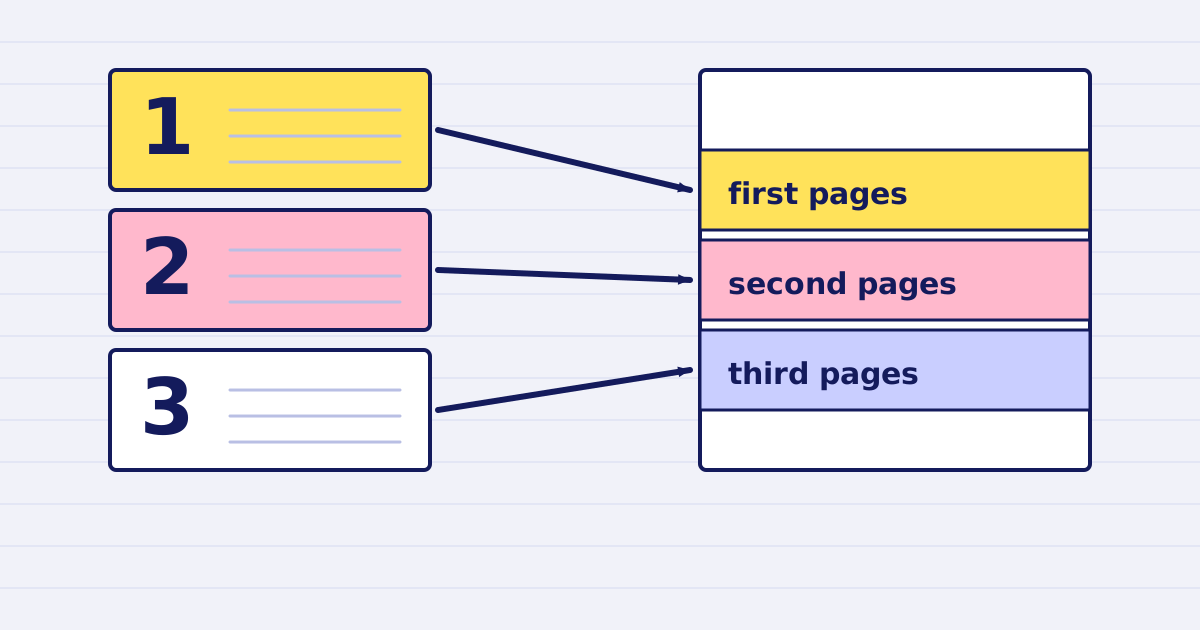
Merge PDFs with an API: ordered URLs in, one PDF out
Merge two to 50 PDFs with one API call. Pages keep the order you list them, and if any source fails the whole job fails at no charge to you. -
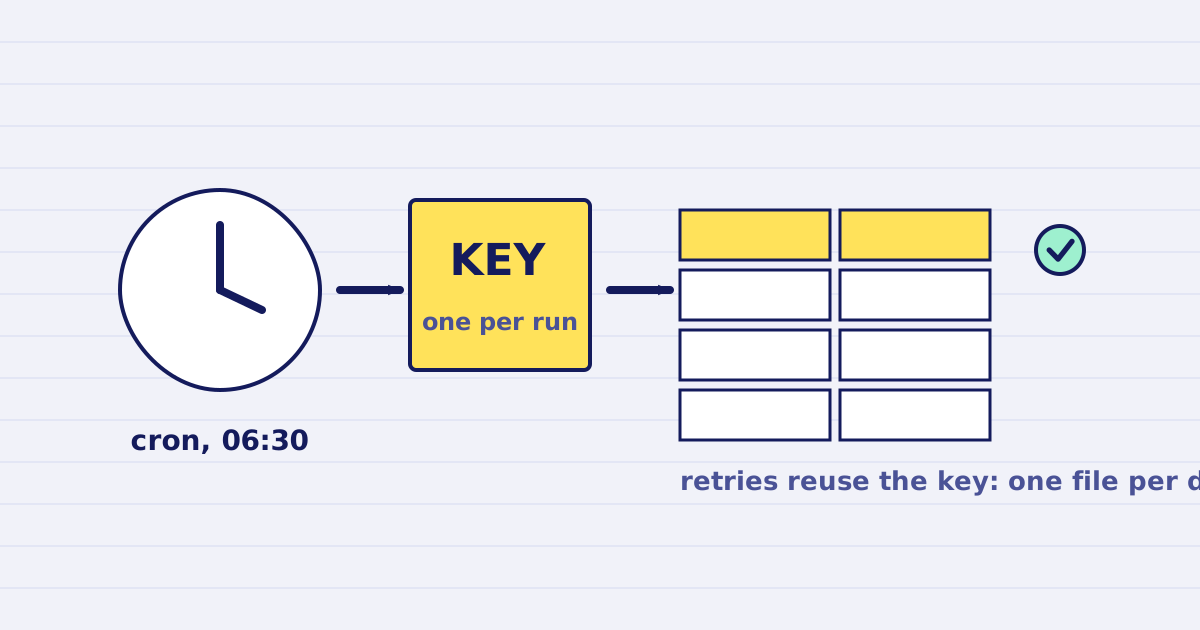
Schedule a daily JSON to Excel export with cron
Run a daily JSON to Excel export with cron: one idempotency key per run, a download before the link expires, and a size check. Script and crontab line included.