What PDF compression strips by default, and what it keeps
By default the engine removes author metadata, XMP and name-tree attachments, and keeps tags, alt text and links. Here is what we measured.
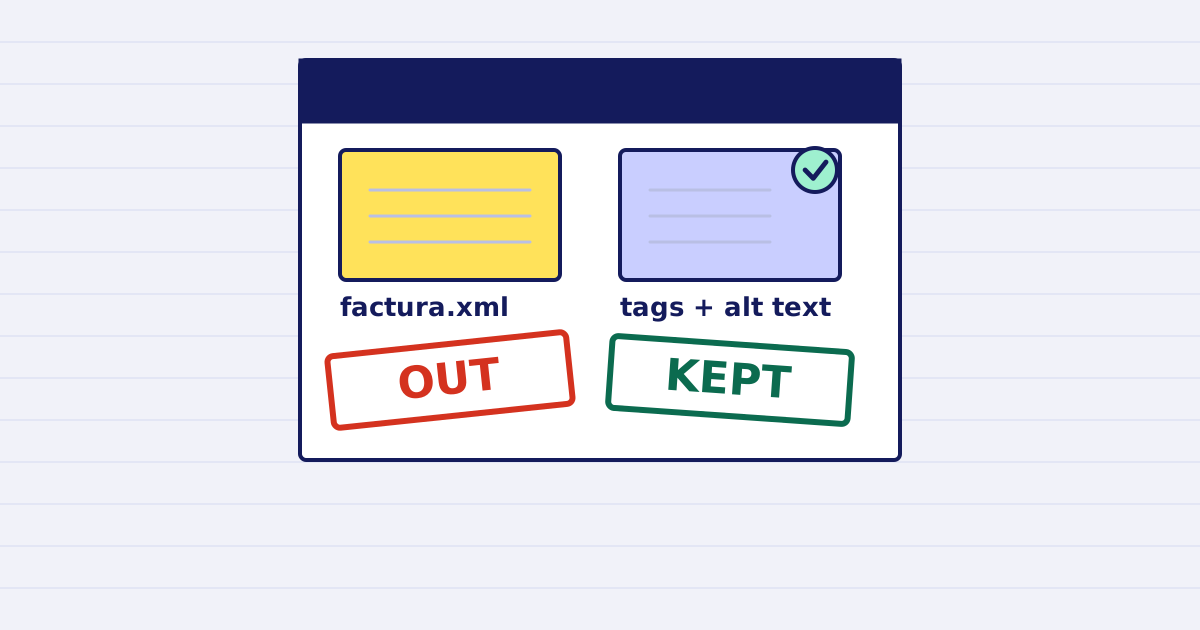
A PDF holds more than its pages. By default, compression removes the author, the XMP metadata, JavaScript, thumbnails and attachments listed in the name tree. It keeps tags, alt text and link annotations. An attachment that the catalog still points to under /AF stays in the file.
Most of the time, a compressed PDF is the same document, only smaller. But a PDF can also carry an invoice XML, the name of the person who made it, and the structure that screen readers use. You want some of that gone before an email goes out. You need to keep the rest. This guide lists the defaults, shows what we measured, and gives you a short check to run on your own files.
The defaults
| Item | Default | Option |
|---|---|---|
| Document info: author, creator, dates | Removed | strip.metadata |
| XMP metadata block | Removed | strip.metadata |
| Page thumbnails | Removed | strip.thumbnails |
| JavaScript and automatic actions | Removed | strip.javascript |
| Attachments listed in the name tree | Removed | strip.embedded_files |
| Annotations: links, comments, form fields | Kept | strip.annotations, default false |
| Structure tree: tags and alt text | Kept | strip.structure_tree, default false |
The last two stay on purpose. Removing the structure tree saves bytes, but it breaks the accessibility of the document. The API reference lists every strip field.
What we measured
We built one synthetic PDF for the test, not a customer file. It has:
- one 1200 × 1600 pixel photo, placed at 155 × 206 points
- a link annotation
- an author in the document info and a creator in the XMP block
- a structure tree with one figure that has alt text
- an attachment named
factura.xml
We made two versions. In the first, the attachment is listed only in the name tree. In the second, it is listed in the name tree and in the /AF array. We compressed each one with default options.
| Item | Input | Name tree only | Name tree and /AF |
|---|---|---|---|
| Author in document info | Present | Removed | Removed |
| XMP creator | Present | Removed | Removed |
Attachment factura.xml |
Present | Removed | Kept |
| Link annotation | Present | Kept | Kept |
| Alt text in the structure tree | Present | Kept | Kept |
The first version went from 183,076 bytes to 13,514 bytes. The second went from 183,090 to 13,742. Almost all of that drop is the photo. With every strip option set to false, the first version came out at 14,238 bytes, so the defaults saved 724 bytes on this file.
The attachment trap
An attachment can be listed in two places. The name tree is the list that a PDF reader shows as attachments. /AF, the associated files array, ties a file to the content it describes. The default strip removes the name tree entry. It does not remove a file that /AF still points to.
So a check of the name tree alone can say "no attachments" when the file is still there. Check both places after compression:
import pikepdf

with pikepdf.open("result.pdf") as pdf:
    names = pdf.Root.get("/Names", {})
    print("name tree attachments:", "/EmbeddedFiles" in names)
    print("AF entries:", len(pdf.Root.get("/AF", [])))
    print("tagged:", "/StructTreeRoot" in pdf.Root)
On the second version, the first line prints False and the second prints 1. The attachment was still in the file.
If an attachment is data you need, such as an XML invoice, turn off the attachment strip:
"options": {
  "profile": "email",
  "strip": { "embedded_files": false }
}
With that option, the attachment stayed in the first version too.
Keep the original
Compression writes a new file. It does not edit your record. Keep the original for archives, for signature checks and for any process that must match a source file. A signed PDF is refused by default, because compressing it breaks the signature. The signed PDF error page explains the options.
If the result is not smaller than the input, the API returns your original file unchanged, and result.returned_original is true. In that case nothing is stripped, and the attachment and metadata come back too. Check that field before you assume the strip ran.
A five-minute check
- Send one real file with the options you plan to use.
- Open the result in a PDF reader. Look at the document properties and the attachments panel.
- Run the snippet above on the output.
- If the file must stay accessible, run it through an accessibility checker. The engine keeps the tags, but keeping them does not certify the file.
- Store the original next to the result.
What this does not cover
Stripping metadata changes what is around the page content. It does not remove personal data written into the text or the images. If a file leaves your organization, review its content as well.
We tested one synthetic file with default options. PDFs with form fields, optional content or unusual encodings can behave differently. Run a sample of your own files before a bulk job.
Next, read how to analyze a PDF before you compress it and PDF compression for photo reports.
Keep reading
-
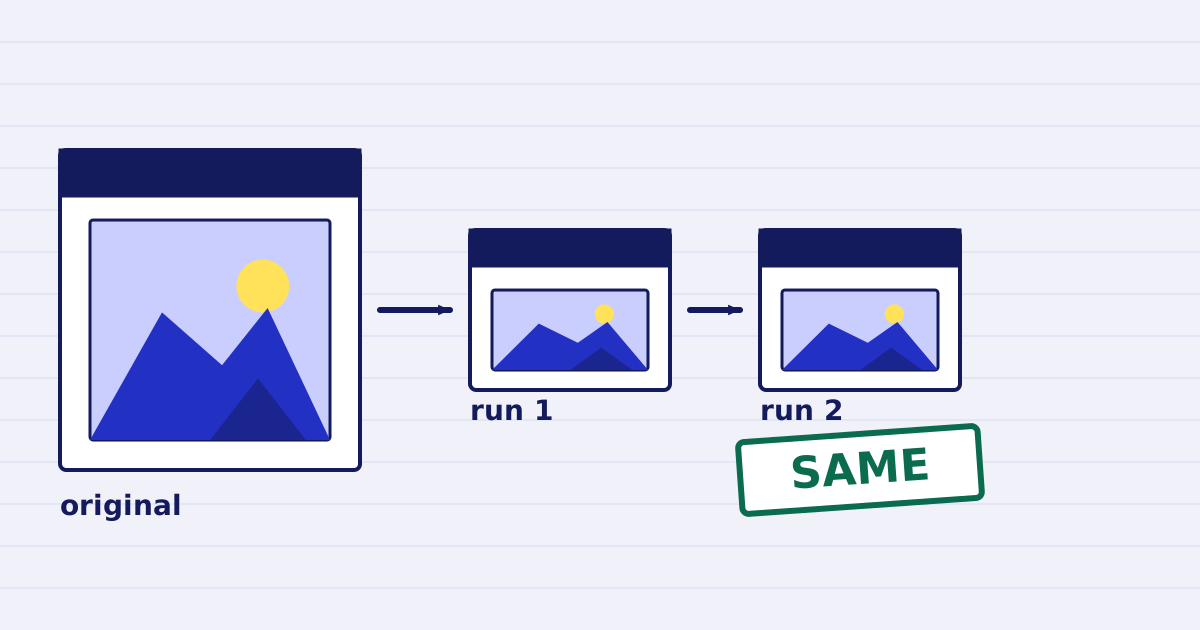
Compress a PDF twice: the second run returns the same bytes
A second compression run skips images that are already at target, so the file comes back unchanged. We measured it, and the case where it does more work. -
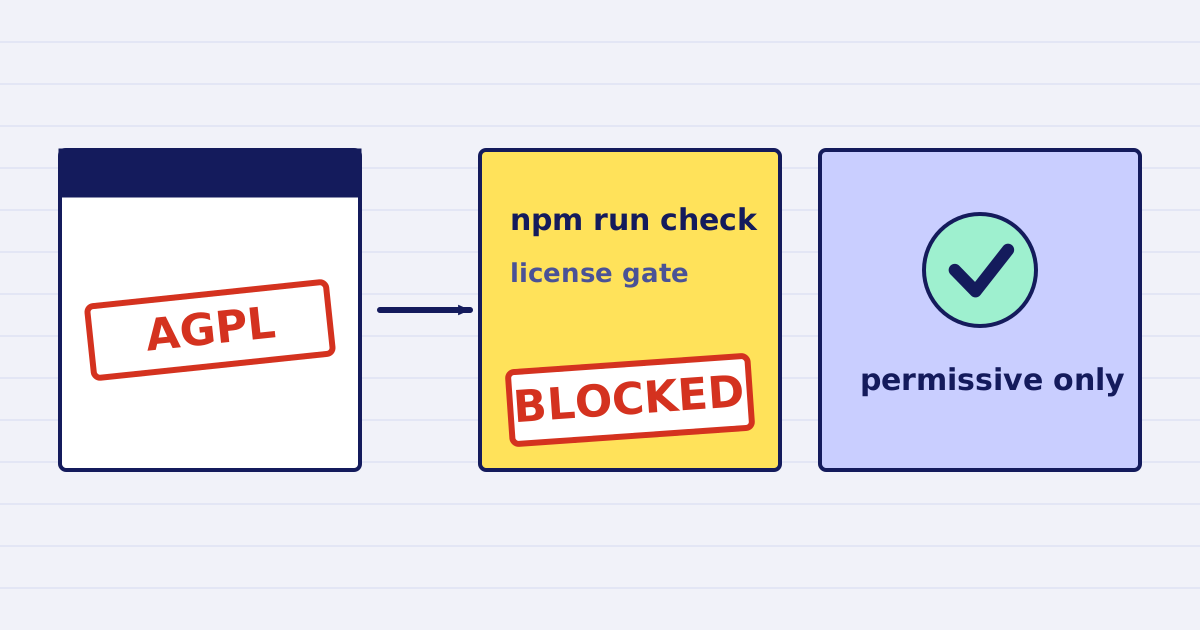
Why our PDF pipeline avoids Ghostscript and MuPDF
Ghostscript and MuPDF are AGPL-licensed. Here is what that license asks of a hosted API, and how our build blocks AGPL and GPL dependencies.