JBIG2 can turn a 6 into an 8: why our default is lossless
In 2013 a bug in Xerox copiers changed digits in scanned pages. Here is how pattern matching went wrong, and why our API defaults to lossless.
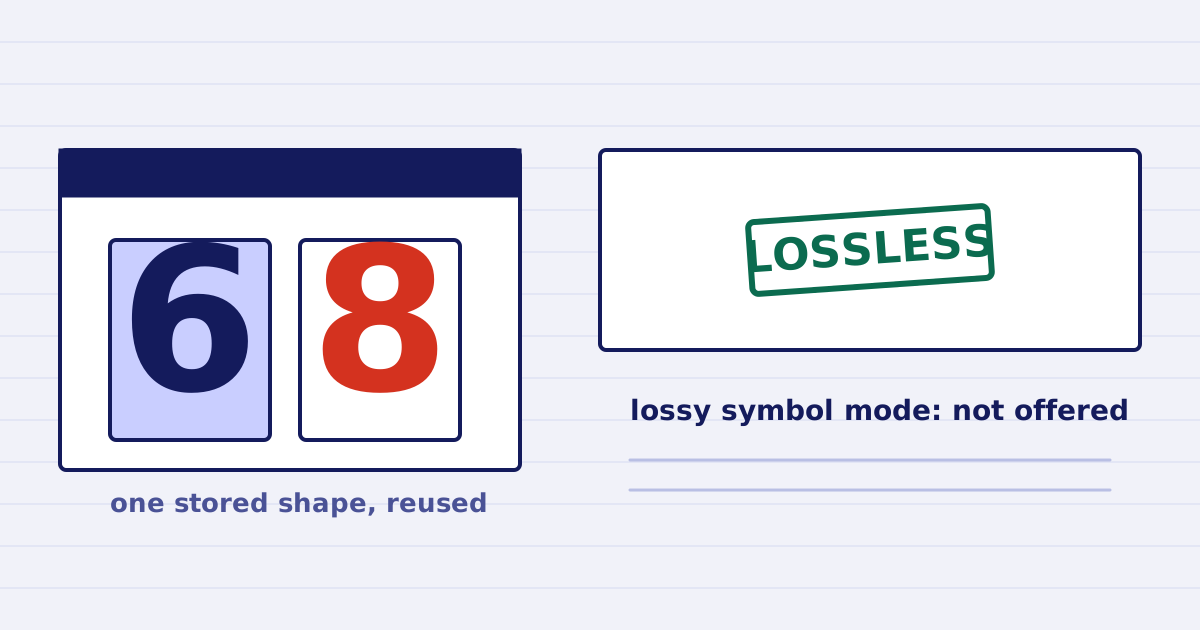
JBIG2 is a good format for scanned pages. It also has a mode that stores one shape and reuses it for shapes that look alike. In 2013, a bug in the pattern-matching step of Xerox copiers changed numbers in scanned pages. Our API defaults to the lossless mode and does not offer the lossy one.
A scanned contract, invoice or floor plan can carry its whole meaning in a few digits. A compressed scan that looks right can still say something different. This post covers what happened in 2013, why the error was hard to notice, what our jbig2 option does, and a test you can run on your own scans.
What happened in 2013
In August 2013, David Kriesel published a report on Xerox WorkCentre devices that changed numbers in scanned documents. His test was simple. He printed a page of numbers in a small font, scanned it on the device, ran OCR on the scan, and compared the result with the original.
The most common error was a 6 read as an 8. Kriesel describes whole patches of the image being replaced, not single pixels. The substituted glyphs look right at a glance. A reader's 60 became 80. A 65 in a cost table became 85.
Trade press covered the story at the time, for example in PC World. Xerox answered in the first week of August. Its early statements pointed to the factory default settings. A later statement announced software patches and said that the substitution would not appear at factory defaults. According to Kriesel's account, Xerox then confirmed a software bug that had existed for about eight years and affected all compression modes. Patches came out in several waves.
Kriesel also wrote the sentence that matters most for this post: "The error cause is not JBIG2 itself." The format is not the problem. The problem was one implementation, and it was in the step that decides which shapes count as the same.
Why it went unnoticed
JBIG2 can store a page as a set of shapes, along with a dictionary of the shapes it has seen. If the encoder judges two shapes to be the same within a tolerance, it stores one copy and reuses it wherever that shape appears. Kriesel puts it plainly: the matched segments are "only saved once and getting reused across the page."
That reuse is what makes symbol mode small. It is also what makes it dangerous. A substituted glyph has the shape of a real digit. The page still looks right, and the file contains no warning. Only a comparison against the original catches the change.
The other JBIG2 method, the generic region, works differently. It codes the pixels of each bitmap directly and does not share one stored shape between two places on the page. The decoded result is the same as the input.
What our jbig2 option does
The PDF optimization API takes a jbig2 value for bilevel scans. The choices are auto, off, and lossless. Both auto and lossless use the generic, lossless mode. The API has no setting for the lossy symbol mode.
Here is the option in a request:
"options": {
  "profile": "email",
  "jbig2": "lossless"
}
We made that choice on purpose. The lossy mode would save more bytes, and we decided that a further saving is not worth changing the numbers in someone's document. The trade-off is size. A lossless scan is usually larger than the same page in the lossy symbol mode, so budget for that in your storage and email limits. Our PDF optimization API reference lists the option with its values. The product page does not promise a JBIG2-specific quality check, so test your scans before you rely on the output.
A test you can run on your own scans
Use Kriesel's method, adapted for a file you already have.
- Pick three real pages where the numbers matter. A total, a date, an ID number. Do not use a sample that avoids the digits you care about.
- Compress them with the options you plan to use. Keep the original next to the result. Our note on what compression strips explains why the original is worth keeping.
- Compare the digits at the zoom your reader will use. Look at every number on the page, not a few of them. A 6 and an 8 are easy to confuse at low zoom.
- If you have a text layer or can run OCR, extract the text from the original and from the result, then compare the two. Check each difference by eye. OCR makes mistakes too, so a difference is a reason to look, not a verdict.
- Write down what you tested. Record the file name, the pages, the options and the result. A short log lets you repeat the test later with the same settings.
- Repeat the test when anything changes. A new option, a new profile or a new scanner setting can change the output.
If a single digit differs, do not use that setting for that kind of document. Ask for a different output or keep the original file.
When to be strict
The risk is highest where a digit carries the meaning of the page:
- invoices, delivery notes and receipts
- medical forms and lab reports
- building plans and measurements
- legal filings and signed contracts
Photo-only PDFs, where no digit has to be read, carry a different kind of risk. Those are covered in PDF compression for photo reports.
Summary
- In 2013, a pattern-matching bug in Xerox copiers changed digits in scanned documents, including 6 read as 8. Xerox confirmed a software bug, according to Kriesel's account, and released patches.
- The risk comes from reusing one stored shape for shapes that look alike. A wrong match looks correct on the page.
- Our
jbig2option acceptsauto,offorlossless. Bothautoandlosslessuse the generic, lossless mode. The lossy symbol mode is not available in the API. - Test real pages with the digits that matter, and keep the original.
For background on the format, the JBIG2 article on Wikipedia describes its modes. The licensing side of our PDF stack is covered in why we avoid Ghostscript and MuPDF.
Keep reading
-
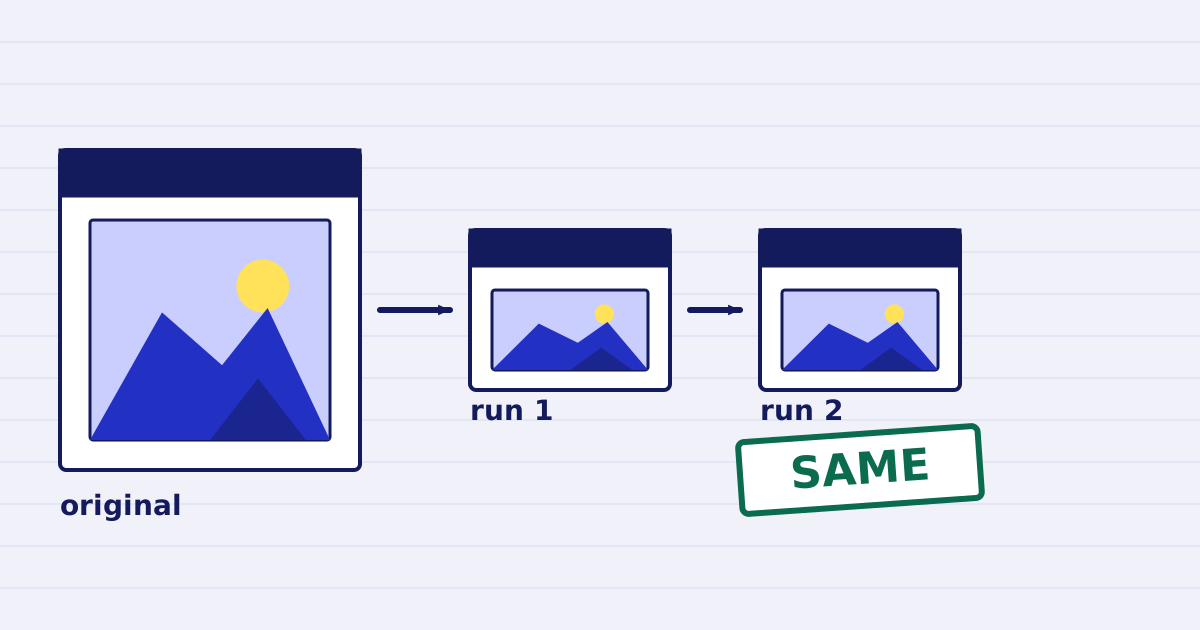
Compress a PDF twice: the second run returns the same bytes
A second compression run skips images that are already at target, so the file comes back unchanged. We measured it, and the case where it does more work. -
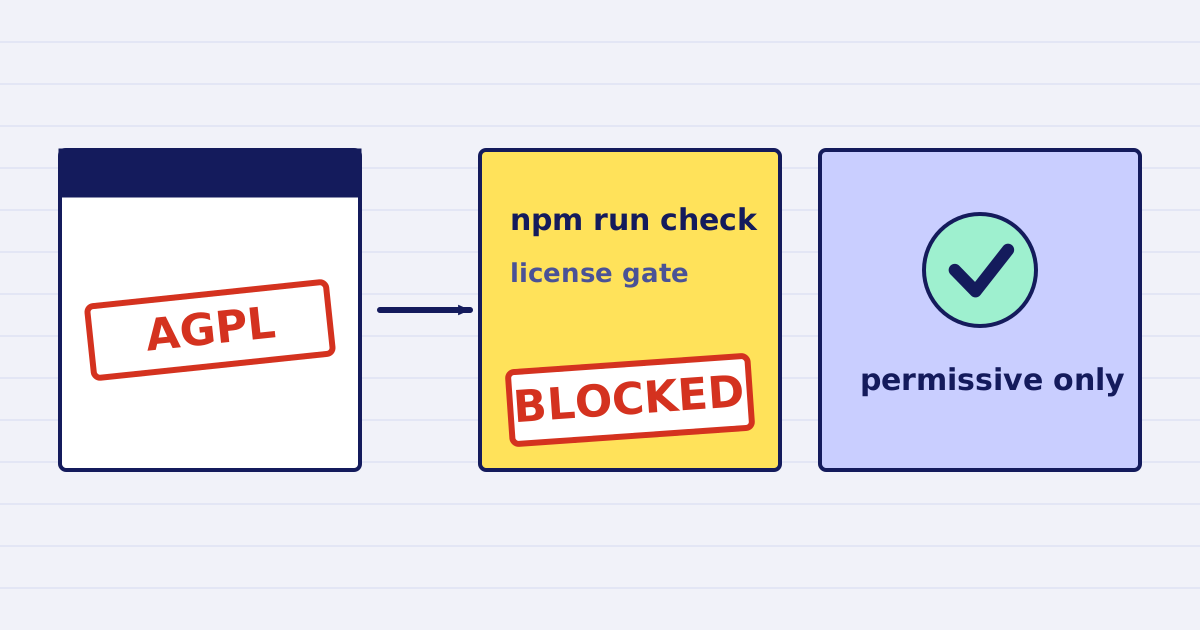
Why our PDF pipeline avoids Ghostscript and MuPDF
Ghostscript and MuPDF are AGPL-licensed. Here is what that license asks of a hosted API, and how our build blocks AGPL and GPL dependencies.