Reduce PDF size for email attachments with a compression API
Shrink a PDF for email with the email profile and a size target, check whether the target was met, and handle signed or archival PDFs safely.
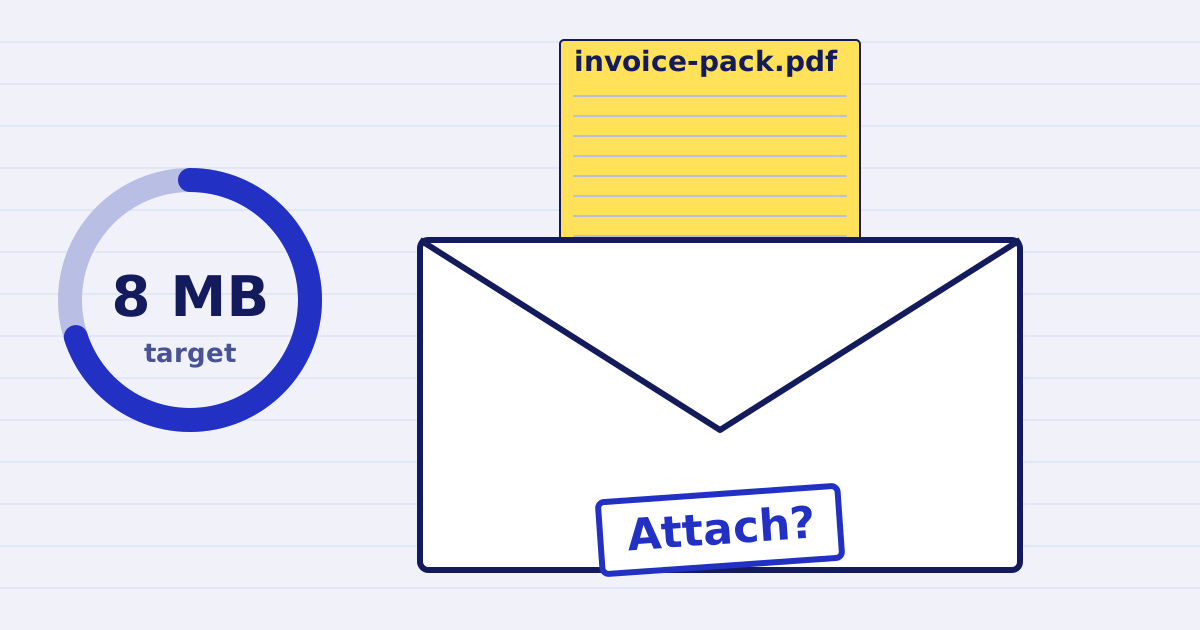
An email attachment fails for one reason: the message is too large. Your mail system, the recipient's mail system or an intermediary sets the limit, and a PDF that worked yesterday can fail today because someone added photos.
This article shows how to compress a PDF for email with the JustAPI PDF compression API. It also covers the cases where compression is the wrong answer, so you can decide before you send anything.
Decide whether to attach at all
Before you compress, ask whether the recipient needs a copy at all. A link to a stored file is often better than an attachment. It is smaller, it can be revoked, and you can see whether the file was opened. Use a copy only when the recipient must keep one, or when the link route is not available.
If you do attach, compress a delivery copy and keep the original. The original is the file you archive, sign or send to a printer.
Send the request
The email profile is designed for a document that will be read on a screen. Set a size target with max_size_mb when your budget is known.
curl https://api.justapi.tech/v1/pdf/compress \
  -H "Authorization: Bearer YOUR_API_KEY" \
  -H "Content-Type: application/json" \
  -d '{
    "source": { "url": "https://files.example.com/invoice-pack.pdf" },
    "options": { "profile": "email", "max_size_mb": 8, "output": "url" },
    "mode": "sync",
    "idempotency_key": "REPLACE_WITH_STORED_KEY"
  }'
The max_size_mb value is a target for the binary PDF. Choose it from your own limit, and leave room for the message body and any other attachments. The base64 encoding used by some email APIs makes the payload about a third larger than the binary file. The photo report guide explains how to calculate a base64 budget.
Sync mode accepts files up to 10 MB. For a larger input, set "mode": "async" and read the result from the job or from a webhook.
Check the target
Read the response before you attach the file. Three fields matter most:
stats.original_bytesandstats.output_bytes, to compare the sizes.stats.ratio, which is the output size divided by the original.stats.target_not_met. When it istrue, the service could not reach your target without crossing its quality floor.
A successful HTTP response does not mean the file fits. If target_not_met is true, do not attach the file. Choose another route: send a link, split the document, or review the images that take up most of the space.
If the output is not smaller than the original, the service returns your original file and charges nothing. Treat that as a valid outcome, not an error.
Check legibility at the size the reader will use
Compression resamples each image to the size it is shown at on the page. That is the reason it works on a photo report. It is also a risk for small text inside an image, such as a serial number on a label or a handwritten note.
Open the output and zoom to a normal reading size. Check the fine print, the tables and any image that carries information. If something is hard to read, use a higher max_size_mb, or choose another profile for that document. The screen profile and the ebook profile are alternatives, and the API reference describes each one.
Send the file that the recipient will open
Attach the delivery copy, not the working draft. A working draft may have comments, tracked changes or internal notes that should not leave your organization. Export a clean PDF from the source program first, then compress that export.
Rename the attachment for the recipient, with the date and the document type, such as invoice-pack-2026-10.pdf. A clear name prevents a mix-up when several versions are in the same thread.
Signed and archival PDFs
Compression rewrites the file. A rewrite can break a digital signature. The service rejects a detected signature by default, and returns the signed_pdf error. Its detection is not a full signature validator, so keep the validation your signing process already needs.
The service also rejects detected PDF/A and PDF/X declarations by default, because those files must stay conformant. Do not turn off these checks only to make an automated job succeed. Compress a delivery copy before you sign it whenever your process allows that. For the error itself, see the signed_pdf guide.
Failures and retries
A file that cannot be read returns a 4xx, and you are not charged. A request that fails on our side returns a 5xx, and you are not charged for that either. Retry a 5xx with the same idempotency key and the same body, so the retry does not create a second job.
Store the result.url and result.expires_at. Download the file before the expiry and acknowledge it with POST /v1/files/{file_id}/ack, so the service deletes it at once.
What it costs
At the first volume tier, a PDF of up to 25 MB costs $0.03 per compression. A file from 25 to 200 MB costs $0.06. The price falls with monthly volume, and the pricing page lists every tier. Quality verification is an optional add-on with its own price.
Test with a real attachment
Pick three PDFs that you already send by email: a text-heavy file, a file with photos and a file that is already small. Run each through the request, check the target flag, open the output, and attach it to a test message to yourself. Only after that should you put the call into a live process.
Start free at app.justapi.tech with 1 USD of credit and no card. For a single file, you can also try the free PDF compressor, which accepts one PDF of up to 5 MB at a time.
Keep reading
-
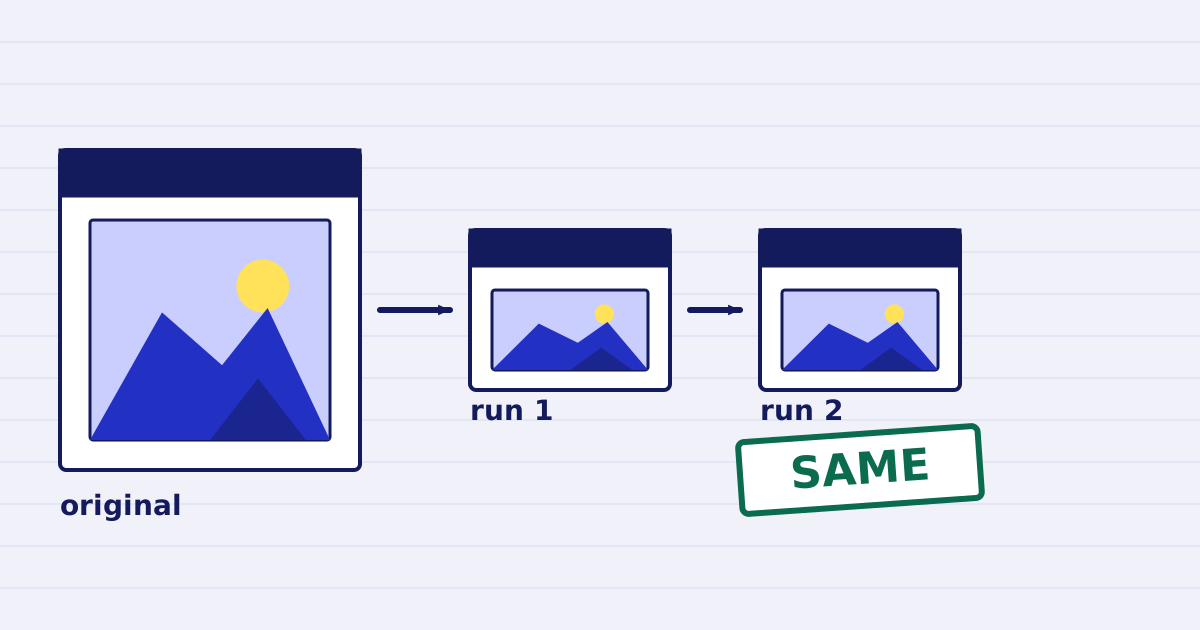
Compress a PDF twice: the second run returns the same bytes
A second compression run skips images that are already at target, so the file comes back unchanged. We measured it, and the case where it does more work. -
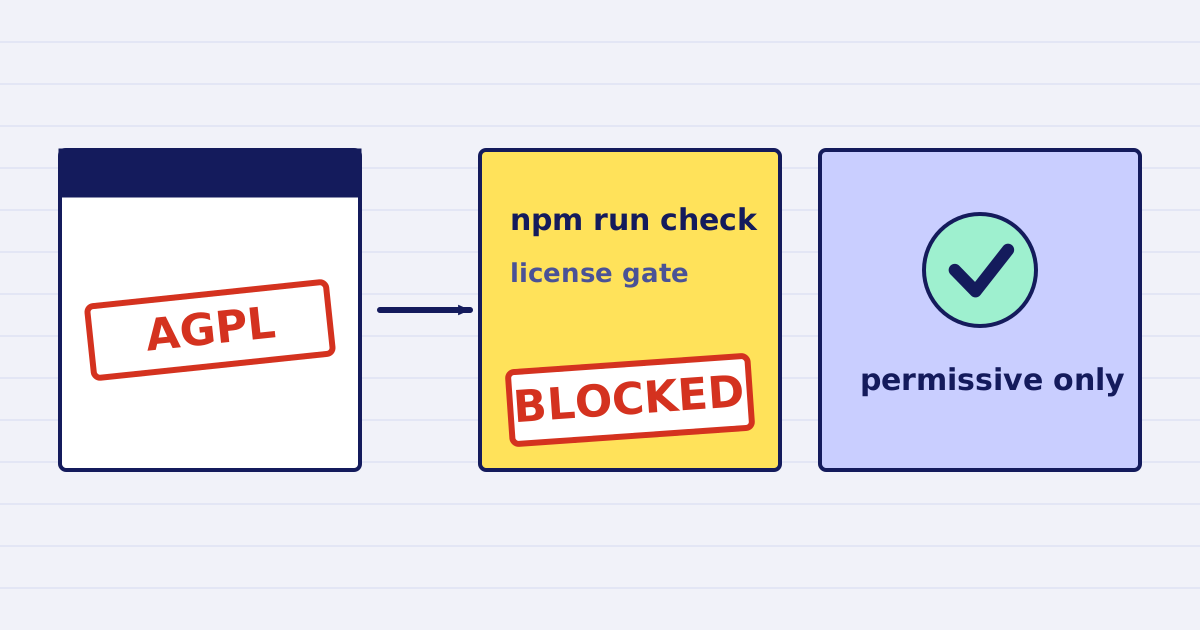
Why our PDF pipeline avoids Ghostscript and MuPDF
Ghostscript and MuPDF are AGPL-licensed. Here is what that license asks of a hosted API, and how our build blocks AGPL and GPL dependencies.