JSON to Excel with styles: generate .xlsx files by API
Build a styled Excel workbook from JSON with one API call. Define sheets, columns, types, number formats and header styles, then download the .xlsx file.
Many business tools export JSON, but people want an Excel file. A finance team wants amounts formatted as currency. A warehouse wants a header row that stays visible. A customer wants dates that sort correctly. A plain CSV rarely does all of that.
The JustAPI JSON to Excel API takes JSON and returns a real .xlsx file, with column types, number formats and header styles. This article shows the request shape, the options that matter, and the limits to plan around. For the types and the safety rules for user text, read the companion article on JSON to Excel types and formula safety.
The request shape
POST https://api.justapi.tech/v1/xlsx/generate takes a workbook with a sheets array. Each sheet has a name, a columns array and a rows array. Each row is a JSON object whose keys match the key of a column.
curl https://api.justapi.tech/v1/xlsx/generate \
  -H "Authorization: Bearer YOUR_API_KEY" \
  -H "Content-Type: application/json" \
  -d '{
    "sheets": [
      {
        "name": "Orders",
        "columns": [
          { "header": "Order", "key": "order", "width": 14 },
          { "header": "Customer", "key": "customer", "width": 24 },
          { "header": "Amount", "key": "amount", "type": "number", "format": "$#,##0.00", "width": 14 },
          { "header": "Placed on", "key": "placed", "type": "date", "format": "yyyy-mm-dd", "width": 14 }
        ],
        "rows": [
          { "order": "A-1001", "customer": "Ana Perez", "amount": 1520.5, "placed": "2026-10-02" },
          { "order": "A-1002", "customer": "Luis Mora", "amount": 80, "placed": "2026-10-03" }
        ],
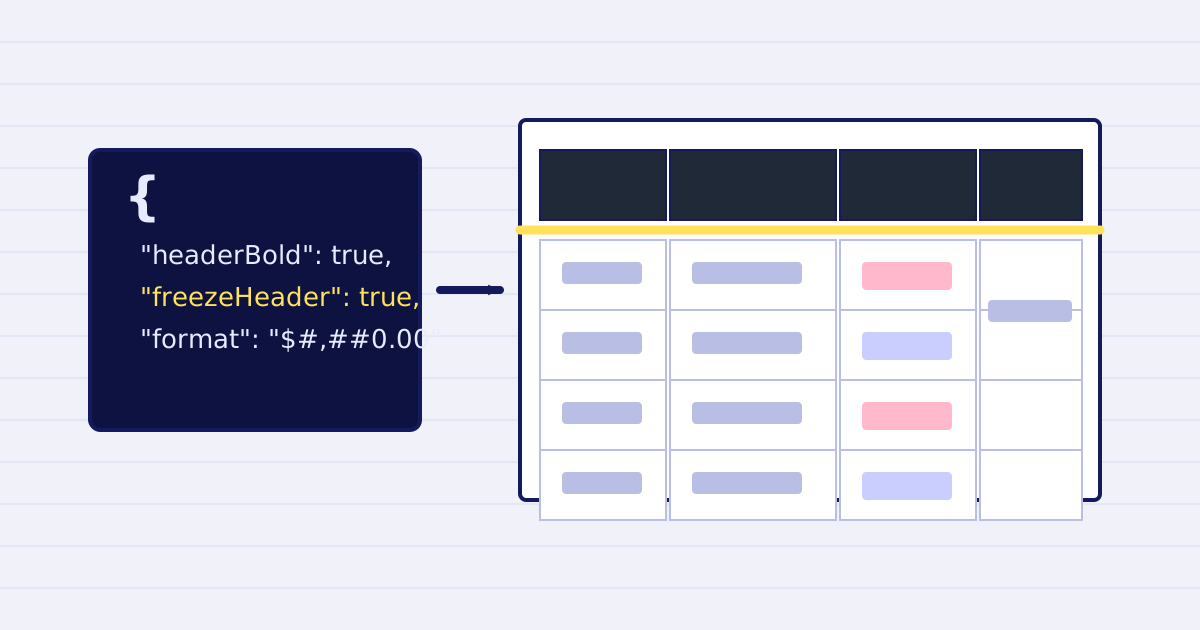
        "style": { "headerBold": true, "headerBackground": "#1F2937", "headerColor": "#FFFFFF", "freezeHeader": true }
      }
    ],
    "options": { "filename": "orders-2026-10.xlsx", "creator": "Billing export" }
  }'
A successful sync call returns the file in result. The download URL is signed and it expires, so save the file to your storage or to the user's download before the expiry time.
Column types and formats
Each column can declare its type: string, number, date or boolean. Without a declared type, the service infers a type from the value. Declare the type when it matters. An identifier such as 00123 should be a string, so the leading zeros survive. An amount should be a number, so it can be summed.
The format field takes an Excel number format, such as $#,##0.00 for currency or yyyy-mm-dd for dates. Set width in characters when you want a fixed column width. If you omit width, the columns fit their content.
Header styles
The style object on each sheet is flat, and every field in it is optional. Set headerBold and freezeHeader to control the header row, and set headerBackground and headerColor to hex values to match your brand. Freeze the header if the sheet will be scrolled.
Keep the styling simple. A workbook with a clear header and correct types is easier to use than one with many colours.
Options
The options object accepts these fields:
filenamesets the download name.creatorandcompanyset document properties.allowFormulasdefaults tofalse. When it isfalse, a cell value that starts with=,+,-or@is written as text, not evaluated. Keep the default for any data that came from users.
You can also send a top-level filename as a shorthand. If both are set, options.filename wins.
Limits to plan around
- A workbook can have up to 64 sheets.
- The API accepts up to 200,000 rows per workbook today. Check the JSON to Excel reference for the current rules on sync and async mode before you design the export.
- For a large export, send
"mode": "async". The call returns202, and you read the result from the job or from a webhook. - Dates should be ISO strings, such as
2026-10-02, so that the column type is unambiguous.
Working example: a monthly export
A typical export has three parts. Your application queries the data, shapes it into rows with the keys you defined, and sends one request. The workbook is then stored with the report's id.
Keep the column list in code next to the query, not in the spreadsheet. When someone adds a field, you change one place and the export stays consistent.
Test with a row that has a comma in a name, an empty value, a number with two decimals and a date at the start of the month. Open the file in Excel and in a spreadsheet app to confirm that the types appear as expected.
Keep the row shape stable
Every row should have every key that a column refers to, so all rows share one shape. Build the rows from one function that always returns the same keys, and set the value to null where a value is unknown. A row with a different shape is easy to miss in review, and it is hard to trace once the file is in circulation.
Keep numbers as numbers in your JSON. A value such as "1520.50" sent as text may be written as text, which Excel will not sum. Send 1520.5 and set the column type to number.
Avoid nested objects in a cell. Flatten them into separate columns before you send the workbook, so each column has one meaning.
Free tool first
To check the output on one file, use the free JSON to Excel converter. It accepts a JSON array of up to 500 rows and 20 columns, builds one sheet, and returns the .xlsx file. It is the same job as the API, with lower limits and five uses per day.
What it costs
At the first volume tier, a file costs $0.008, plus $0.00003 for each 1,000 cells. The per-cell part is small, so the file charge is the main cost for typical exports. The rate falls with monthly volume. The pricing page has the tiers and a calculator. A request that fails with a 4xx or a 5xx is not charged.
Start with one sheet
Start free at app.justapi.tech. New accounts get 1 USD of credit with no card. Build one sheet from a real but non-sensitive export, open it, and check the types, the formats and the header. Then add the other sheets and the scheduled job.
Keep reading
-
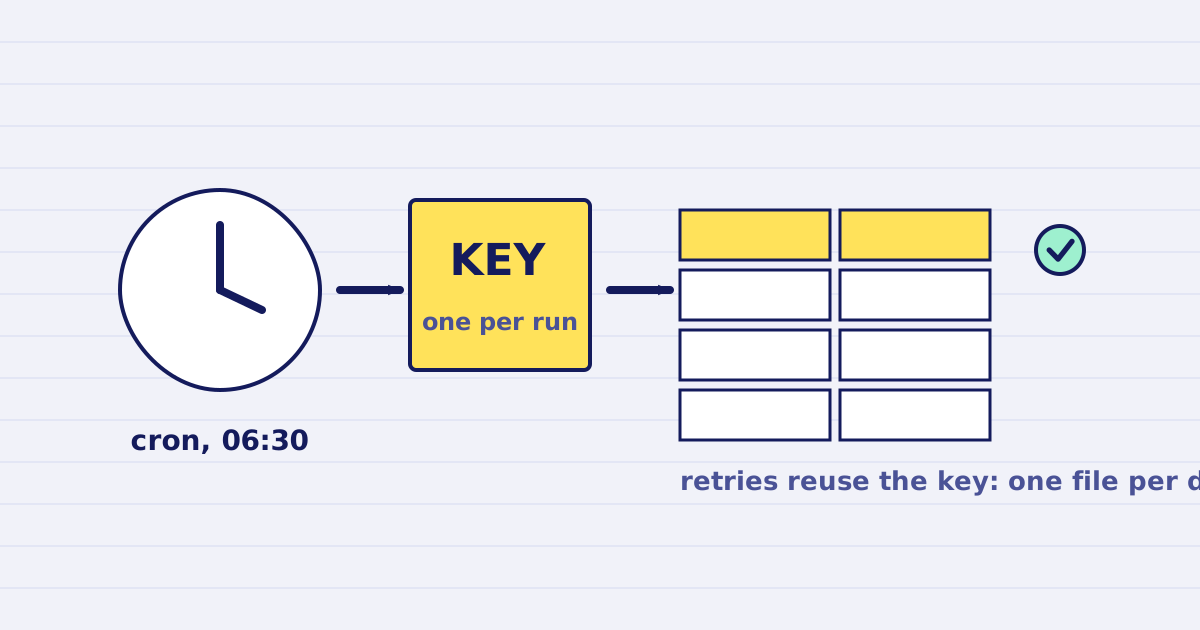
Schedule a daily JSON to Excel export with cron
Run a daily JSON to Excel export with cron: one idempotency key per run, a download before the link expires, and a size check. Script and crontab line included. -
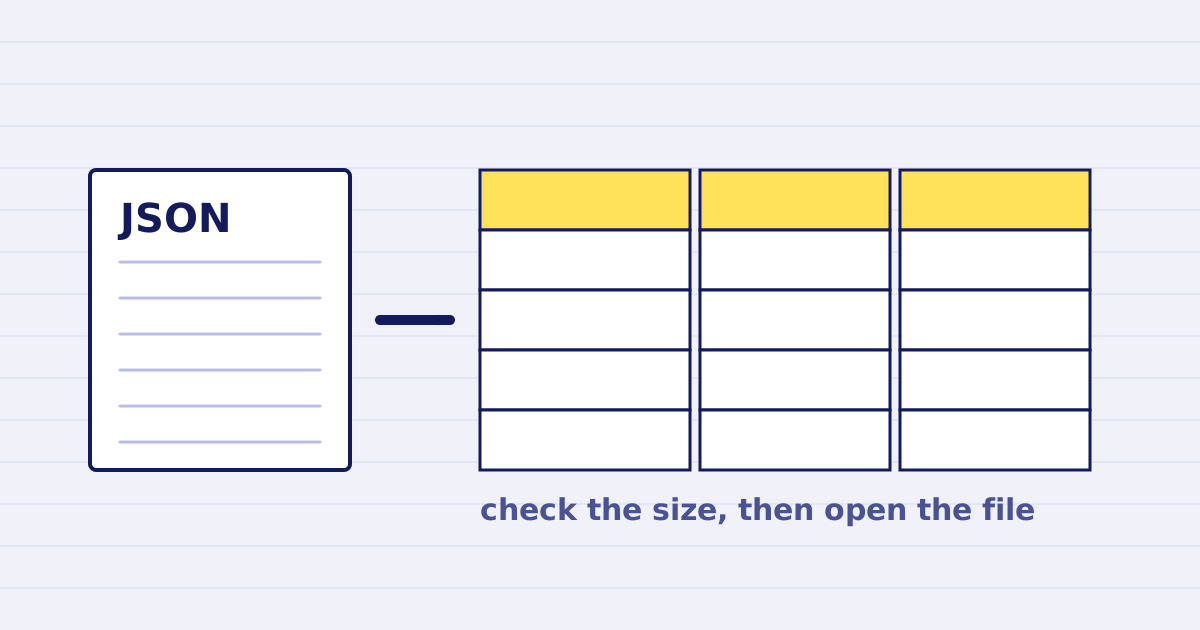
Export JSON to Excel from Node.js and Python
Generate an .xlsx file from JSON in Node.js or Python, check the download size, keep formulas off and know the row limit before you send the export.