Export JSON to Excel from Node.js and Python
Generate an .xlsx file from JSON in Node.js or Python, check the download size, keep formulas off and know the row limit before you send the export.
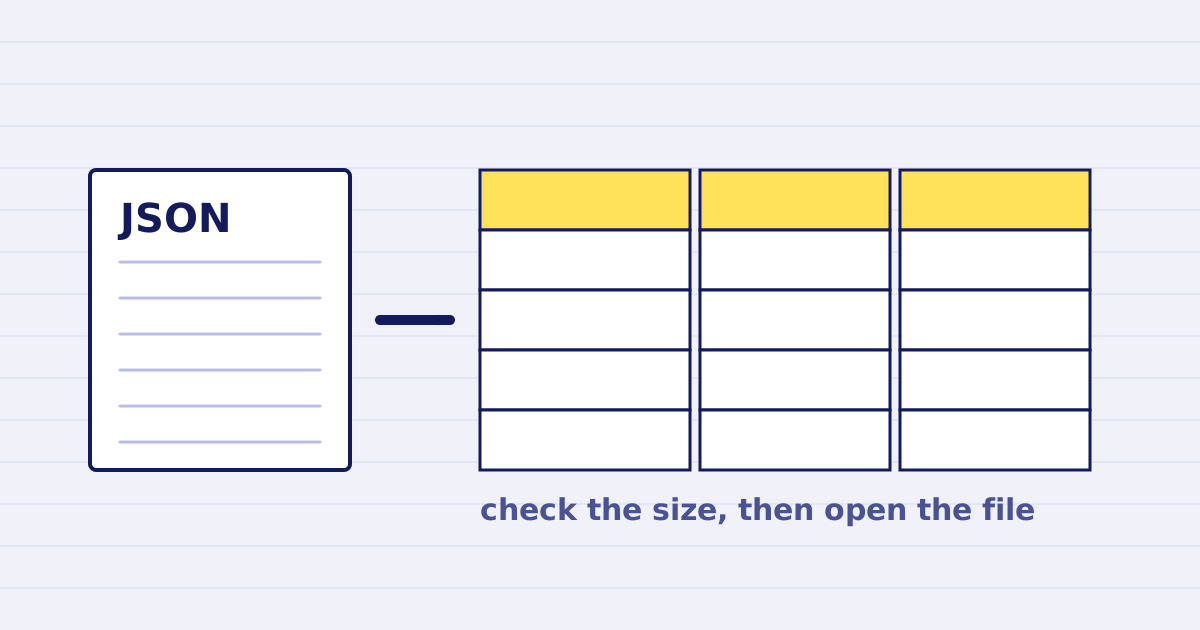
An export from JSON to Excel is one request and one download. Most of the risk sits in the code around that request. The client has to send a workbook the API accepts, check the file it receives before it saves it, and report a failure with enough detail to fix it. A workbook that opens is not proof that the export is complete.
This guide gives you a client for Node.js 18 or later and one for Python 3.9 or later. Both send a native workbook payload, save the .xlsx file and check its size against the response. The JSON to Excel reference lists every field. This article covers the client, the checks and the limits that decide whether a large export will work.
The payload
The request has a sheets array. Each sheet has a name, a list of columns and the rows. A column names its header and the key in each row, and it sets a type and an optional format. The options object carries the file name and the formula setting.
{
  "sheets": [{
    "name": "Orders",
    "columns": [
      { "header": "Order", "key": "order", "type": "string" },
      { "header": "Amount", "key": "amount", "type": "number", "format": "$#,##0.00" },
      { "header": "Placed", "key": "placed", "type": "date", "format": "yyyy-mm-dd" }
    ],
    "rows": [{ "order": "00123", "amount": 1250.5, "placed": "2026-10-28" }]
  }],
  "options": { "filename": "orders-2026-10-28.xlsx", "allowFormulas": false }
}
Declare the type of every column. A value that looks like a number but belongs to an identifier, such as the order 00123, must be a string, or the leading zeros disappear. The types and formula safety guide explains the rules for identifiers, dates and user text, so this article does not repeat them. Keep allowFormulas set to false for any data a user can type into.
The Node.js client
This client uses the built-in fetch of Node.js 18 or later. Set JUSTAPI_KEY in the environment and run the file with node json-to-excel.mjs.
import { writeFile } from 'node:fs/promises';

const API = 'https://api.justapi.tech';
const KEY = process.env.JUSTAPI_KEY;

// Sync by default: a 200 response carries the link to the finished file.
export async function jsonToXlsx(sheets, filename) {
  const res = await fetch(`${API}/v1/xlsx/generate`, {
    method: 'POST',
    headers: { Authorization: `Bearer ${KEY}`, 'Content-Type': 'application/json' },
    body: JSON.stringify({ sheets, options: { filename, allowFormulas: false } }),
  });
  if (!res.ok) throw new Error(`xlsx generate failed: HTTP ${res.status} ${await res.text()}`);
  const { result } = await res.json();

  const file = await fetch(result.url); // The link is signed: no key needed.
  if (!file.ok) throw new Error(`download failed: HTTP ${file.status}`);
  const bytes = Buffer.from(await file.arrayBuffer());
  if (bytes.length !== result.bytes) {
    throw new Error(`size mismatch: got ${bytes.length} bytes, expected ${result.bytes}`);
  }
  await writeFile(filename, bytes);
  return { filename, bytes: bytes.length, fileId: result.file_id };
}

const sheets = [{
  name: 'Orders',
  columns: [
    { header: 'Order', key: 'order', type: 'string' },
    { header: 'Amount', key: 'amount', type: 'number', format: '$#,##0.00' },
    { header: 'Placed', key: 'placed', type: 'date', format: 'yyyy-mm-dd' },
  ],
  rows: [{ order: '00123', amount: 1250.5, placed: '2026-10-28' }],
}];

console.log(await jsonToXlsx(sheets, 'orders-2026-10-28.xlsx'));
The Python client
This client uses requests, installed with pip install requests. Set JUSTAPI_KEY and run the file with python json_to_excel.py.
import os

import requests

API = "https://api.justapi.tech"
HEADERS = {"Authorization": f"Bearer {os.environ['JUSTAPI_KEY']}", "Content-Type": "application/json"}


def json_to_xlsx(sheets, filename):
    """Sync by default: a 200 response carries the link to the finished file."""
    res = requests.post(
        f"{API}/v1/xlsx/generate",
        json={"sheets": sheets, "options": {"filename": filename, "allowFormulas": False}},
        headers=HEADERS,
        timeout=60,
    )
    res.raise_for_status()
    result = res.json()["result"]

    file = requests.get(result["url"], timeout=120)  # The link is signed: no key needed.
    file.raise_for_status()
    if len(file.content) != result["bytes"]:
        raise RuntimeError(f"size mismatch: got {len(file.content)} bytes, expected {result['bytes']}")
    with open(filename, "wb") as f:
        f.write(file.content)
    return {"filename": filename, "bytes": len(file.content), "file_id": result["file_id"]}


if __name__ == "__main__":
    sheets = [{
        "name": "Orders",
        "columns": [
            {"header": "Order", "key": "order", "type": "string"},
            {"header": "Amount", "key": "amount", "type": "number", "format": "$#,##0.00"},
            {"header": "Placed", "key": "placed", "type": "date", "format": "yyyy-mm-dd"},
        ],
        "rows": [{"order": "00123", "amount": 1250.5, "placed": "2026-10-28"}],
    }]
    print(json_to_xlsx(sheets, "orders-2026-10-28.xlsx"))
Both clients do the same four things. They send the workbook once, raise an error with the status and the body when the API refuses it, download the file from its signed link and compare the byte count with the bytes value in the response. The last check is the one people skip, and it is the one that catches a truncated download or an HTML error page saved under an .xlsx name.
What the size check catches
A download can fail in ways that still return a successful status. A proxy can cut a response short. A redirect can land on a page that says the link has expired. A client that saves whatever arrives will write that page to disk with the workbook's name, and the user will see a file that will not open. Comparing the byte count with result.bytes turns that silent failure into an error you can log.
The check does not prove the workbook is correct. It proves that the bytes you saved are the bytes the service made. Correctness of the data is a separate test, and it belongs to your application: open a sample file in Excel or LibreOffice, look at the identifiers, the amounts and the dates, and keep one of them as a fixture for your tests.
Row limits
The row limit decides how you structure the export. Sync requests accept up to 200,000 data rows, counted across all the sheets in the request. The free allowance is 10,000 rows per workbook. The file format itself is far larger, with up to 1,048,576 rows on a sheet, so the API's limits are the ones to design around. Above the sync limit, the endpoint returns 400 sync_not_available. Async mode does not raise the ceiling: a request above 200,000 rows gets 413 file_too_large in async mode. The sync_not_available error and the file_too_large error explain each case.
So for an export above 200,000 rows, split the data before you call the API. Make one request per part, such as one workbook per month or per branch, and name the files so the parts are easy to find. One request cannot carry more than 200,000 rows, whatever its mode, and a second sheet in the same request counts against that same total.
It helps to count before you call. The rows of every sheet, added together, tell you which branch to take, and the count also tells you how many cells the export will have. Both numbers are useful in a user interface, where you can say "this export needs three files" before the user waits for an error.
Formulas and user text
Text from users can begin with =, +, - or @. A spreadsheet program can read that text as a formula, and a formula can do more than you intended. With allowFormulas set to false, the service protects those cells. The formula safety guide shows the test to run on a note such as =1+1, which should stay text in the file.
Keep the option off for any data that did not come from your own code. Turn it on only when you control every cell and need the protective prefix removed for a reason you can state.
What it costs
A workbook costs a fixed amount per file plus an amount per 1,000 cells. At the first monthly tier, a file costs $0.008, and each 1,000 cells cost $0.00003. The cell count is rows times columns, added across the sheets, and it is rounded up to the next thousand. Failed requests cost nothing, so a 400 for an oversized export does not reach your bill.
Take an export of 2,000 orders with 12 columns. That is 24,000 cells, or 24 thousands. The file costs $0.008, and the cells add 24 times $0.00003, which is $0.00072. The total is $0.00872 for the file. At the second tier, the file charge falls to $0.006 and the cell charge to $0.000025 per thousand. The pricing page has the table, and the JSON to Excel API page describes what the endpoint returns.
Before you put it in production
Create the workbook on your server, where the key stays private. Store the file in your own storage and give the user your link, not the signed link from the API, because the signed link expires. Keep the file_id with the export record so that you can find the file later.
The snippets in this article were run against a local stub that follows the response shapes in the reference, including the byte check. They were not run against the live service from this page. Run each client once with a real key, open the result in a spreadsheet program, and check one identifier, one amount and one date before you rely on the export.
For a worked example with styles and header rows, read the JSON to Excel styles guide. The source of the schema is in the JSON to Excel reference.
Keep reading
-
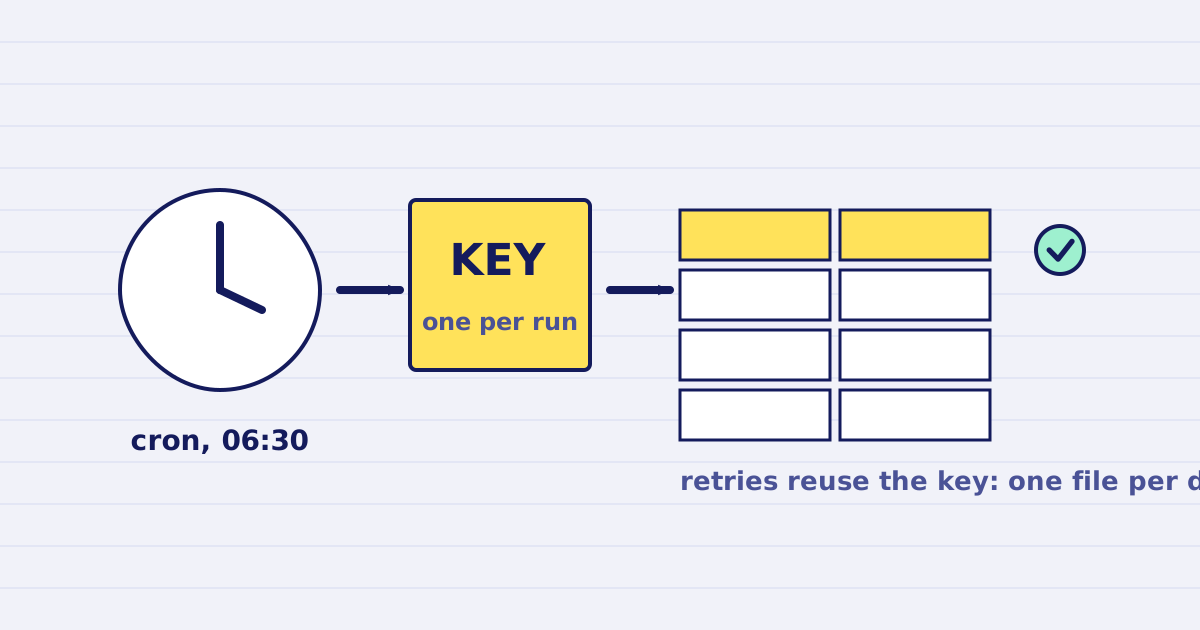
Schedule a daily JSON to Excel export with cron
Run a daily JSON to Excel export with cron: one idempotency key per run, a download before the link expires, and a size check. Script and crontab line included. -
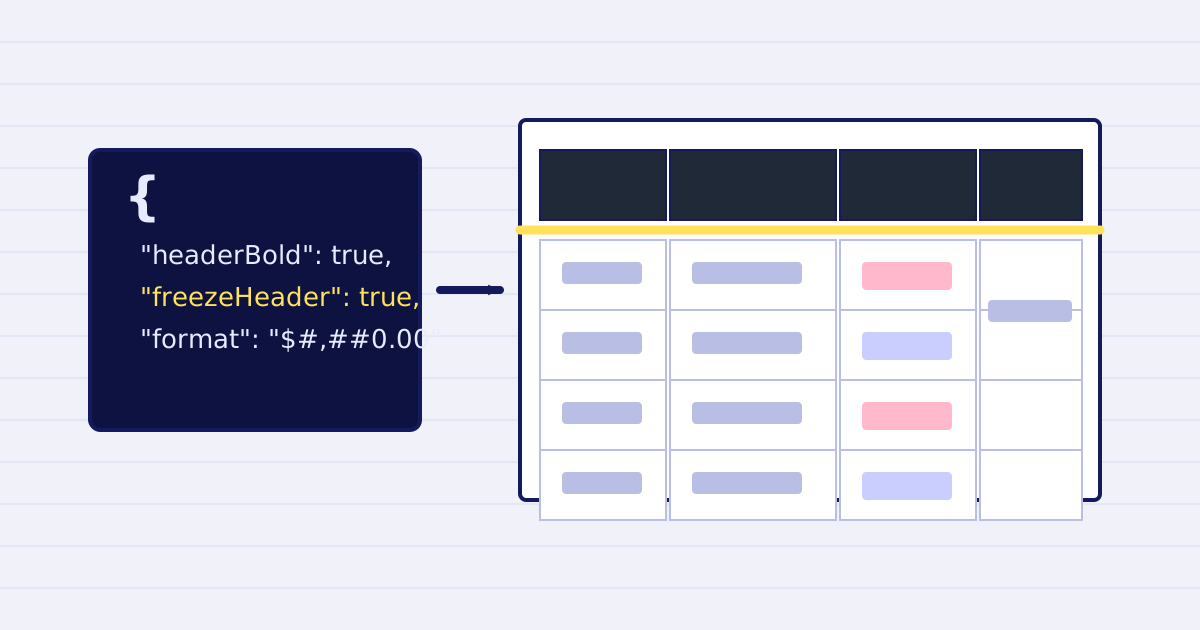
JSON to Excel with styles: generate .xlsx files by API
Build a styled Excel workbook from JSON with one API call. Define sheets, columns, types, number formats and header styles, then download the .xlsx file.