JSON to Excel API: types, leading zeros and formula safety
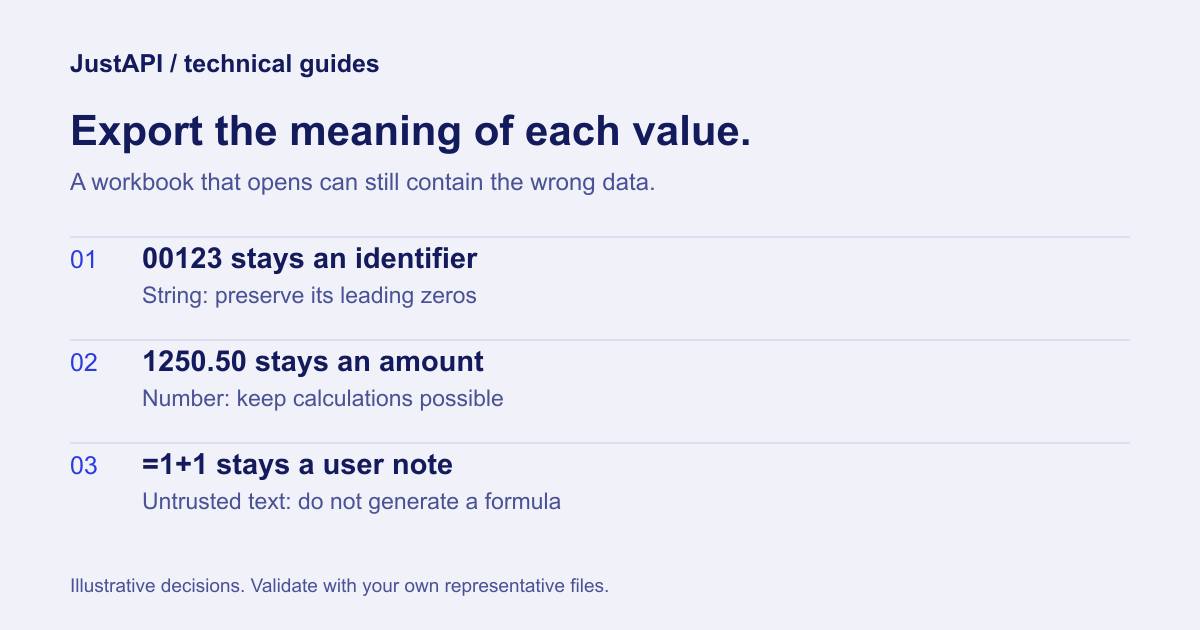
A JSON to Excel API should preserve what your data means, not just put values into cells. Export identifiers as text, amounts as numbers and dates with an explicit interpretation. Keep user-entered text from becoming executable spreadsheet content. A workbook that opens can still contain the wrong data.
This guide uses the current JustAPI JSON to Excel service. Its examples are synthetic. They cover a report with a leading-zero SKU, an amount, a date and a note from a user, so the checks are easy to reproduce without exposing customer records.
Decide which values are identifiers
An identifier can contain only digits and still be text. Product codes, account references and postal codes are not quantities you add together. Export them as strings so leading zeros and the exact identifier survive. Do not rely on a spreadsheet viewer to infer your business meaning.
| Value in the application | Suggested column type | Reason |
|---|---|---|
SKU 00123 |
string |
Leading zeros are part of the identifier |
Amount 1250.5 |
number |
Totals and comparisons need a numeric cell |
Date 2026-10-12 |
date |
An explicit date can have a display format |
Confirmed true |
boolean |
It represents a true/false value |
Note =1+1 from a user |
string, safe defaults enabled |
It is data, not a trusted formula |
The current writer supports these explicit types. It also performs inference, but an explicit type is better when the meaning matters. If your application already converted 00123 to the number 123, the export cannot reconstruct the lost zeros. Fix the source data or supply a deliberately formatted identifier before creating the workbook.
Also separate a numeric value from its display. A currency format can display 1250.5 as money without turning it into a string containing a currency symbol. That lets the recipient calculate a total without cleaning up every exported row.
Treat dates as data with a declared meaning
Use an unambiguous input date and a deliberate display format. A date-only field and a timestamp are different data. Decide which one the report needs, and perform any business timezone conversion in your application before exporting. Formatting a timestamp does not resolve which day your business intended.
For a date-only example, 2026-10-12 is clearer than 10/12/2026, whose interpretation varies by locale. Automatic type inference leaves ambiguous date-like strings as text rather than guessing every regional format. An explicitly declared date uses date parsing, so set that type only after confirming that the input follows the format you intend to use.
A test should inspect the cell's value and type, not merely the label visible on screen. Microsoft's documentation on retrieving cell values explains why SpreadsheetML cell types affect how a value is interpreted. A formatted number and a string that looks like a number are different things in the file.
Send a workbook schema with the rows
Declare the columns, types and formats next to the row data. This makes the export contract reviewable and avoids depending on a viewer's guesses. The payload below also sets a few supported presentation options without letting presentation change the underlying values.
Endpoint: POST https://api.justapi.tech/v1/xlsx/generate.
{
  "sheets": [{
    "name": "Orders",
    "columns": [
      { "header": "SKU", "key": "sku", "type": "string" },
      { "header": "Amount", "key": "amount", "type": "number", "format": "$#,##0.00" },
      { "header": "Date", "key": "date", "type": "date", "format": "yyyy-mm-dd" },
      { "header": "Note", "key": "note", "type": "string" }
    ],
    "rows": [{
      "sku": "00123",
      "amount": 1250.5,
      "date": "2026-10-12",
      "note": "=1+1"
    }],
    "style": {
      "headerBold": true,
      "freezeHeader": true,
      "autofilter": true
    }
  }],
  "options": {
    "filename": "orders.xlsx",
    "creator": "My reporting app",
    "allowFormulas": false
  }
}
Make the authorized call from your backend with Content-Type: application/json and a stable idempotency key for that export operation. Follow the quickstart to obtain access. Download the file from the response URL; the JSON response is not itself the spreadsheet.
| Response field | What your workflow should check |
|---|---|
result.url and result.expires_at |
Download before expiry or store your own copy |
result.bytes |
Downloaded file size matches the reported output |
stats.rows and stats.sheets |
Counts match the report you requested |
The style object is flat: freezeHeader and autofilter live directly inside style. The public XLSX reference also documents the legacy Excelerant-compatible shape. Do not mix the native and legacy shapes in the same sheet merely because both are accepted.
Keep user input separate from formulas
Do not turn a user's note into a formula just because it begins with a spreadsheet operator. Treat untrusted fields as data and keep the safe export defaults. This is especially important when exports contain names, comments, imported addresses or other values someone outside your application can control.
OWASP's explanation of formula injection describes the risk when spreadsheet software interprets untrusted cells as executable formulas. Its CSV-specific escaping advice should not be copied blindly into an XLSX writer: CSV and typed SpreadsheetML cells have different representations.
JustAPI adds a protective apostrophe to strings beginning with =, +, -, @, tab, carriage return or newline by default. The writer stores string cells as strings. A real negative number supplied as a number is different from a user-provided string beginning with a minus sign.
Keep options.allowFormulas: false for user data. The current option's name deserves care: setting it to true disables that protective prefix, but it does not make the service generate OOXML formula elements. This guide does not advertise a formula-generation feature.
For the example note =1+1, inspect that the export treats it as text and does not produce the calculated number 2. Your application should also distinguish trusted, developer-defined calculations from untrusted text when it offers other spreadsheet features.
Understand three different kinds of row limit
The workbook format, the service and your account have separate limits. A format may allow more rows than a hosted endpoint can process within its budget. Asynchronous mode changes how completion is delivered; it does not automatically increase CPU capacity or your account's allowance.
Microsoft's Excel specifications list 1,048,576 rows and 16,384 columns per worksheet. A header uses one of those rows. These are worksheet format/application limits, not a promise that this API accepts a million-row JSON request.
The current JustAPI endpoint has an operational ceiling of 200,000 data rows summed across the workbook, and the free account allowance is lower at 10,000 rows. The implementation has its own limit of 64 sheets. Confirm your account limits before launching a large export; sync and async share the operational row ceiling.
To test a large report, record the total rows across all sheets rather than checking only the largest sheet. Do not split one large export into more sheets and assume the total allowance resets for each sheet. Chunking into separate files may be an application design choice, but it needs its own handling for downloads, fees and completeness.
File size depends on the actual strings
Repeated strings can share a single stored value in an XLSX workbook. That can help reports containing recurring departments, statuses or labels. It does not establish a fixed reduction percentage for every dataset: a workbook full of unique long notes has a different structure from one full of repeated short codes.
Microsoft's shared string table documentation explains this representation. The current writer uses shared strings, but you should measure the files your export actually creates. Avoid equating a count of unique strings with an end-user performance guarantee.
The response reports rows, sheets, cells, unique strings and output size. Use these to check that the export contains the expected data. Compare a small synthetic fixture before adding a large dataset: finding a missing column in a one-row file is easier than diagnosing it in a report with thousands of rows.
Verify the workbook before wiring the download button
Your acceptance check should prove meaning, safety and delivery. This is a proposed integration checklist:
00123remains an identifier with its leading zeros.- The amount is numeric and can participate in a spreadsheet total.
- The date displays as intended and represents the right business date.
- The user note is text; no formula element is generated for it.
- The output opens in the spreadsheet applications your recipients use.
- Row and sheet counts match the source report.
- A retry does not create a second logical export.
- The file is downloaded before the signed URL expires, or copied to your application's storage when appropriate.
Is a CSV with an XLSX extension enough?
No. Changing an extension does not create an Open XML workbook, typed cells or multiple worksheets. Use a real XLSX generator when those properties are part of your report's contract.
Why do my leading zeros disappear?
Check the original JSON and the column type. If the JSON contains a number, the zeros may already be lost. Preserve identifiers as strings from storage through export, rather than repairing only the final display.
Will async accept more rows?
Not in the current endpoint. It gives you a job-based completion flow while retaining the operational ceiling. Handle file size and account errors explicitly instead of retrying a request that is too large.
For workflows that also send photo reports, the same delivery discipline applies: preserve the original meaning, choose the output for the recipient and verify the complete result. The PDF integration guide covers the corresponding file and encoding checks.