PDF compression in Bubble with the API Connector: a guide
Call the JustAPI PDF compression endpoint from a Bubble workflow: set shared headers, send an idempotency key, handle async jobs and read the result safely.
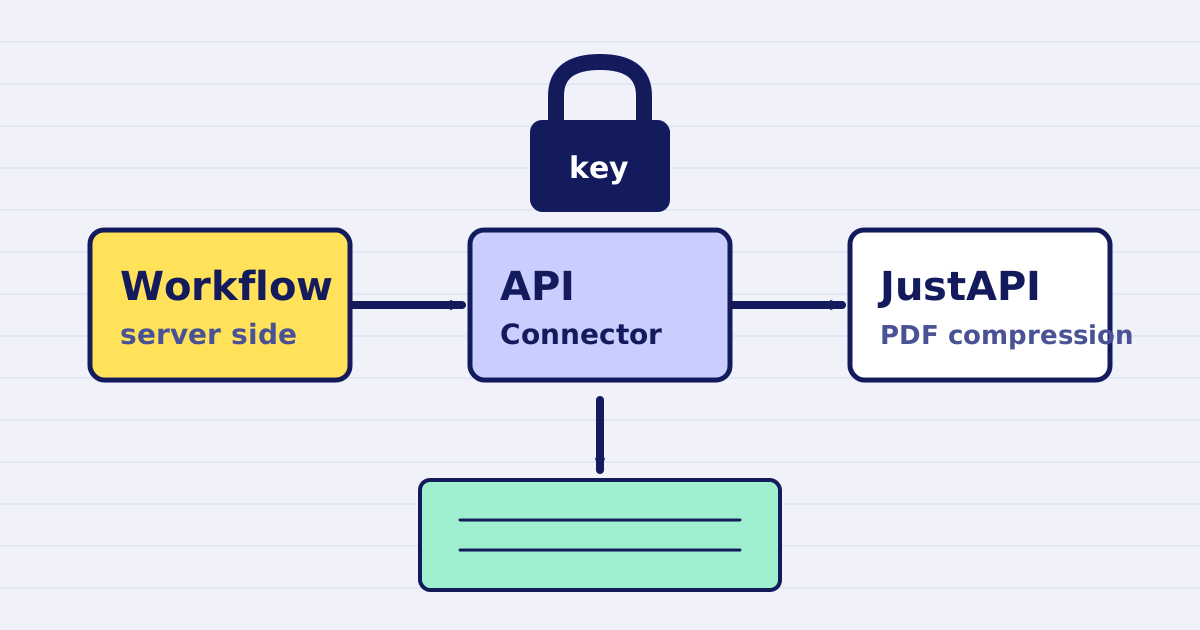
Bubble can call an external API from a backend workflow through the API Connector. That is enough to compress a PDF without writing server code. The hard parts are the same as anywhere else: keeping the key private, not paying twice when Bubble retries a step, and waiting for a file that is still being processed.
This guide uses the JustAPI PDF compression API. The request bodies below were sent to production in a smoke test. The Bubble editor steps are a plan, not a tested recipe. Field names in the API Connector can differ between Bubble versions, so check each step on a test file before you connect it to real data.
Step 1: Store the key and set shared headers
In the API Connector, add a call to the base URL https://api.justapi.tech. Set two shared headers for all calls:
Authorizationwith the valueBearer YOUR_API_KEY. Store the key as a private value, so it is not visible to the browser.Content-Typewith the valueapplication/json.
Do not put the key in a page element or in a front-end workflow. Only backend workflows should call the API.
If you have not created a key yet, follow the quickstart. New accounts receive 1 USD of credit with no card.
Step 2: Create the compression call
Add a POST call to /v1/pdf/compress. Mark the body fields that will change as dynamic values, such as the PDF URL and the idempotency key. For a synchronous call on a file under 10 MB, send this body:
{
  "source": { "url": "https://files.example.com/report.pdf" },
  "options": { "profile": "email", "output": "url" },
  "mode": "sync",
  "idempotency_key": "REPLACE_WITH_STORED_KEY"
}
The profile options are auto, screen, email, ebook, print, prepress and custom. The email profile is a sensible starting point for a file that will be read on a screen or attached to a message. Check the API reference for the rest.
The source must be a public URL that the service can download. If your PDF is stored in Bubble, first confirm that its file URL is public and reachable from outside Bubble. Private and internal addresses are refused.
Step 3: Read the result
A successful sync response has a result object with a url, and a stats object with original_bytes, output_bytes and ratio. The billing object has charged_micros.
Bind the download URL to a data field on the object that started the workflow, and show the sizes to the user only after the call returns. Also store result.file_id, because you need it to delete the file later.
If the output is not smaller than the input, the API returns the original file and charges nothing. Check result.returned_original before you describe the outcome to the user as a compression.
Step 4: Handle larger files
Sync mode accepts files up to 10 MB. For larger PDFs, set "mode": "async". The call returns 202 with a job_id and a status of queued. Poll GET /v1/jobs/{job_id} until the status is completed, failed or cancelled.
A Bubble recurring workflow can run that check. This is a plan that you should test, because the exact loop depends on your app's data model. An alternative is a webhook. Add a webhook object with a url and an auth object with a bearer token to the body. Your webhook endpoint must accept duplicates, because deliveries are at least once. Deduplicate by the X-Webhook-Id header.
Step 5: Protect against retries
Bubble can run a step again after a timeout or a plugin error. Without a stable key, the second call is a second billable job. The fix is simple: generate the key once for each user action, store it in a field, and send that stored value every time.
Put the key in the body as idempotency_key. The earlier smoke test showed that an Idempotency-Key header on the image endpoint created a second job and charged again, while the body field returned the same job with no new charge. Do not depend on the header for Bubble calls.
To verify the behaviour for PDFs, repeat the same call with the same key and a non-sensitive file. Check that the job_id is the same and that billing.charged_micros is zero on the second call.
Errors that Bubble will show
A bad request or a bad source returns a 4xx, and you are not charged. For example, a URL that returns 404 gives 400 invalid_source. Show the error message to the builder during testing, and send a neutral message to end users.
Do not use Wikimedia Commons as the PDF source. The gateway receives 403 from Wikimedia, which returns invalid_source even for a path that does not exist. Host the file on storage that you control, or use a public host that accepts plain requests.
Check your balance without guessing
After a charge, GET /v1/account can lag behind the ledger by up to a minute, because the key's account data is cached. To show a balance straight after an operation, read GET /v1/ledger?limit=1 and use balance_after_micros.
What it costs
At the first volume tier, a PDF up to 25 MB costs $0.03 per compression, and a file from 25 to 200 MB costs $0.06. The price falls with monthly volume. The pricing page shows every tier. A result that cannot be made smaller costs nothing.
Next steps
Start with a test workflow and one non-sensitive file. Confirm the download URL, the sizes, the key handling and the duplicate call. Then connect the workflow to real documents. The full reference lists every option, and the error catalog explains each code.
Start free at app.justapi.tech with 1 USD of credit and no card, and test the Bubble call before you connect it to a live process.
Keep reading
-
Compress a PDF twice: the second run returns the same bytes
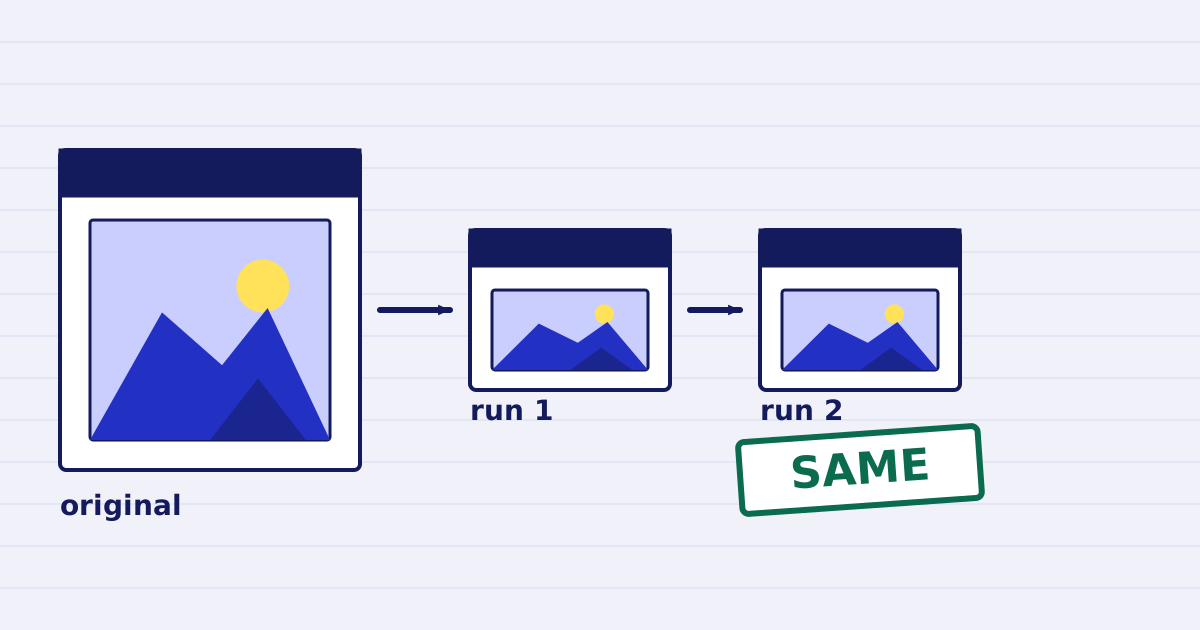
A second compression run skips images that are already at target, so the file comes back unchanged. We measured it, and the case where it does more work. -
Why our PDF pipeline avoids Ghostscript and MuPDF
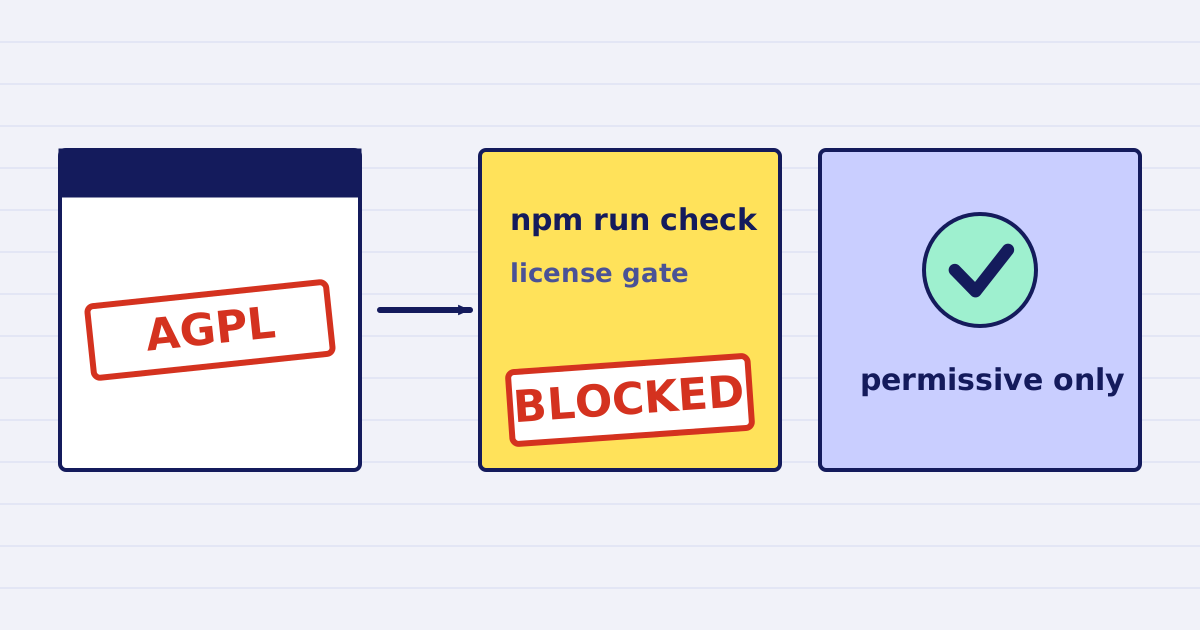
Ghostscript and MuPDF are AGPL-licensed. Here is what that license asks of a hosted API, and how our build blocks AGPL and GPL dependencies.